
PRACTICAL BUYING GUIDE
Can you use a 3D printer without internet? What to check before buying
Yes, many 3D printers can print without an internet connection, provided they support a documented offline method. Some read prepared print files from a USB drive or memory card. Others let a computer send files across your own local network without using the manufacturer’s cloud service.
The important question is whether you can complete your entire intended workflow offline. Printing a supplied demonstration model is different from preparing your own design, starting a new job, checking progress and installing updates.
For example, FLASHFORGE documents USB printing for the Adventurer 5M. Prusa lists USB printing and offline configuration for the Original Prusa MK4S. These are documented examples, not a guarantee that every printer offers the same options. Manufacturer sources.
Published November 23, 2026. Manufacturer information checked November 23, 2026. This guide is based on documentation, not hands-on testing.
First, understand the three connection options
Wi-Fi and internet are often mentioned together, but they mean different things.
Wi-Fi connects devices wirelessly. Your router manages the network in your home or workplace. The internet connects that network to outside services.
A cloud service runs on the provider’s computers elsewhere. A printer using that service may send files or requests through the internet.
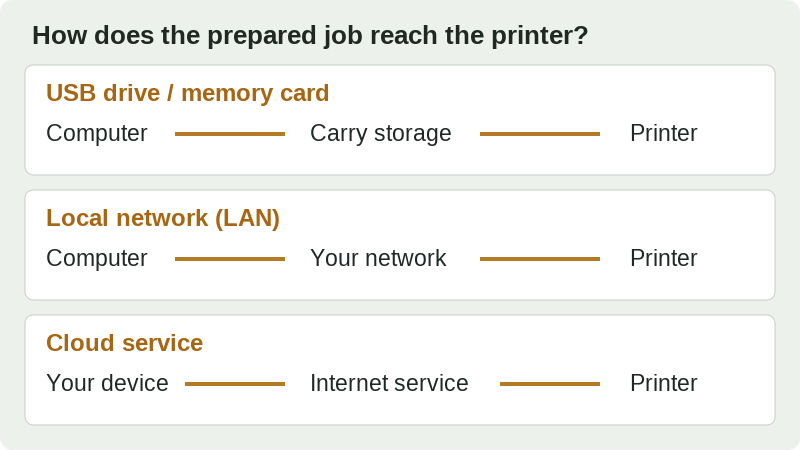
| Printing method | How the prepared file reaches the printer | What to verify |
|---|---|---|
| USB drive or memory card | You physically move a storage device from the computer to the printer | Supported drive or card, file format and startup procedure |
| Local network, often called LAN | Your computer communicates with the printer across your own network | Whether the exact local mode works without cloud access |
| Cloud printing | A manufacturer’s online service connects your device and printer | Internet, account and service requirements |
LAN means local area network. Think of it as devices communicating within your home or workplace.
Prusa illustrates the distinction clearly: PrusaLink provides local monitoring, uploads and control without internet access, while Prusa Connect is its cloud service. The MK4S has PrusaLink built in. Prusa’s connection guide.
How does a design become an offline print?
Suppose you want to make a small tray for paper clips.
You begin with a digital model, a file describing the tray’s shape. An STL is one common model format.
Next comes a slicer, software that prepares the model for printing. It plans the layers and generates instructions for the selected printer.
A profile is a saved collection of settings. You need settings that match your printer and material, rather than whichever machine happened to be selected when someone shared the design.
The slicer then exports a prepared print file. G-code is a common instruction format; some systems use other formats or packaged files.
Prusa’s beginner instructions cover selecting the printer and material, inspecting the preview, then exporting the prepared job to removable storage. Copying the original shape file is not the same as completing that preparation.
If these words are new, keep our 3D printing terms explained for beginners open alongside your printer’s instructions.
Two reviewed printers with documented offline options
These examples show different purchasing considerations. Offline capability alone does not determine which printer fits your projects.
FLASHFORGE Adventurer 5M: documented USB printing
The Adventurer 5M manual describes saving a sliced file to a USB flash drive, inserting the drive into the printer and selecting the job on its screen. It also documents a LAN Only connection method.
That gives an adult home buyer a documented alternative to sending every job through a cloud service. The manual uses older Orca-Flashforge software terminology, so match its procedure with the current software and firmware instructions for your machine.
Read our Adventurer 5M review for its setup, printing area and ownership considerations.
Original Prusa MK4S: offline configuration as well as printing
Prusa’s MK4S product documentation lists a USB drive as a print medium and explicitly states that the printer can be configured without internet access.
This distinction matters if you want the printer to stay offline from its first setup, rather than connect initially and disconnect later. Our reviewed configuration is the fully assembled MK4S; check the exact package when comparing assembled printers with kits.
See our Original Prusa MK4S Fully Assembled review before deciding whether its wider ownership requirements suit you.
Will the phone app still work?
Do not assume that offline printing includes offline phone control.
FLASHFORGE’s current Flash Studio Mobile FAQ states that the app requires an internet connection to communicate with the printer. Consequently, a documented USB printing route should not be treated as a promise that its mobile monitoring features remain available offline.
Before buying, separate these activities:
- Preparing a new design.
- Transferring the prepared file.
- Starting the printer.
- Checking progress on its screen.
- Monitoring through a phone.
- Receiving notifications away from home.
Decide which activities you actually need. Someone happy to carry a USB drive across a room has different requirements from someone expecting to manage the printer entirely through a phone.
Seven questions to ask before buying
1. Can I complete initial setup without internet?
Ask about the exact model and current revision. Look for explicit instructions covering setup, activation and account requirements.
“Supports USB printing” may answer how files are transferred without answering every first-use question.
2. Can I prepare a brand-new design offline?
Confirm where slicing happens. Is there supported software installed on your computer, or does your preferred preparation tool require an online service?
Prusa states that PrusaSlicer performs slicing locally and works offline. That is a documented software option, rather than a feature to assume across all apps.
3. Does my computer support the necessary software?
Check the current operating-system requirements before ordering.
A printer that accepts USB files may still require you to prepare those files on a suitable computer. Owning a phone does not establish that you can complete the same process on it.
4. What exactly does the USB port do?
A visible connector does not explain its purpose. Find the manual section that specifically describes loading and starting print jobs.
Also distinguish a USB storage drive from a USB cable connecting a computer. Instructions for one do not establish support for the other.
5. Which features disappear without internet?
Ask about the features that matter to you, such as mobile control, model libraries or account-based tools.
A useful question for support is:
Can I prepare a new custom model, transfer it and start printing without signing in or connecting to the internet? Which features would be unavailable?
6. How will I obtain updates and replacement software?
Firmware is the software running inside the printer.
Keeping a printer offline should include a plan for obtaining supported updates. Prusa documents downloading software and firmware elsewhere and transferring them for an offline workflow. Follow the procedure for your exact printer rather than applying another model’s update instructions.
7. Can I get clear written instructions before purchasing?
Look for a complete path from a new design to a recognized print job.
Save the relevant manual and support answer. If an essential step remains unclear, resolve it before paying.
What if your internet stops during a print?
An internet outage, a Wi-Fi connection failure and a power outage are different problems.
A documented offline workflow establishes a way to print without internet. It does not establish how every cloud-started job behaves when its connection disappears.
For an important project, confirm the manufacturer’s instructions for your chosen transfer method. Do not assume that “power-loss recovery” also describes network-outage behavior.
Buying for a child? Check the adult’s workflow too
A guided app can be appealing, but an adult should understand the devices, accounts and preparation steps the family will need.
Our Magic Jimmy Spark AI network and app guide and SainSmart PrintyGo custom-model guide examine those questions separately.
Use the Kids & Families guide to distinguish explicitly child-marketed models from general-purpose printers. Adult-beginner suitability and child-use suitability are separate decisions.
Before choosing, work through the free parent checklist, or download its two-page PDF. Include the required adult supervision in your plan.
Using a printer at work
For workplace prototypes, decide where design files are allowed to go before choosing software or connecting equipment.
Ask your IT team whether local-network access, removable storage and any manufacturer account are permitted. A local connection is a technical capability, not automatic approval under your organization’s security rules.
Our workplace printer guide covers the broader buying decision.
Choose the workflow you can comfortably use
For an occasional home project, carrying a storage drive may be entirely practical. For frequent jobs, a documented local-network option may be more convenient.
Write down your requirements first: the device you own, whether an account is acceptable, whether internet is available and how you want to start each job.
Then use the Printer Finder to build a shortlist and compare the reviewed printers. Confirm offline requirements in each manufacturer’s current documentation before purchasing.
Sources and further reading
- FLASHFORGE Adventurer 5M manual: section 4.3, printing methods
- Flash Studio Mobile FAQ: internet requirements
- Original Prusa MK4S: offline configuration and USB printing
- Prusa Connect and PrusaLink explained
- Prusa’s offline workflow and update guidance
- PrusaSlicer: local file preparation
- First print with PrusaSlicer: profiles, preview and export